You planned a spring trip to Moab. Your cell signal is going to disappear somewhere around mile 3. Here’s how to make sure your maps don’t.
Offline maps are straightforward once you’ve done it once. The problem is that most riders figure this out after they’ve needed them — standing at a trail split in a canyon with no signal and an app that’s trying to load a tile it can’t reach.
This guide covers the setup process for the three apps most commonly used by powersports riders, what to know about storage, and how to confirm you actually have the maps you need before you leave the driveway.
Why Cell Service Disappears Exactly Where You Need Navigation Most
Cell towers are built where people live. Trails go where people don’t.
The terrain features that make riding good — canyons, mountain ridges, remote desert — are the same features that block or eliminate cell signal. By the time you’re deep into most riding areas, LTE is gone. In many popular destinations across the Southwest, you’re dealing with no signal for the entire ride.
Apps that rely on streaming map tiles — loading data as you move — stop working the moment signal drops. If you haven’t downloaded maps in advance, you’re left with whatever was cached from the last time you loaded the area, which may or may not cover your actual route.
The solution is always the same: download offline maps for your planned ride region before you leave home.
How Offline Maps Work on Android Tablets
Navigation apps store offline maps as data files on your device’s storage. When you download a region, the app pulls all the relevant map tiles, trail data, topo information, and imagery for that area and saves it locally.
Once downloaded, the app reads from local storage instead of the network. Position is determined by the device’s GPS receiver — satellite-based, no network required. As long as you have the region downloaded, navigation works completely offline at any point in the ride.
The important thing to understand: offline map data can be large. A full state-level download for a western state (Utah, Colorado, Nevada) in a trail-focused app can run 2–5 GB. If you’re planning rides across multiple states or want detailed satellite imagery alongside topo data, storage adds up quickly. Know your device’s available storage before you start downloading.
Setting Up Offline Maps in onX Offroad
onX Offroad is the most widely used navigation app among UTV and ATV riders. Here’s how to download offline maps:
- Open onX Offroad and tap the Offline Maps button.
- Select New Map.
- Navigate the map to your riding area.
- Draw the boundary box around the region you want to download. Larger regions take more storage and longer to download.
- Select your detail level. Higher detail includes more satellite imagery and uses significantly more storage.
- Tap Download and let the download complete over Wi-Fi before you leave. Large regions can run several gigabytes.
After downloading, confirm the region shows as Downloaded in your offline map list. Verify by switching to airplane mode and opening the app — GPS still functions, the downloaded area loads, no network required.
onX Offroad requires an active subscription for offline map access. Confirm your plan includes offline downloads before heading into the field.
Setting Up Offline Maps in Gaia GPS
Gaia GPS is the preferred app for many ADV motorcycle and overlanding riders, especially for detailed topographic data.
- Open Gaia GPS and navigate to the area you want to download.
- Tap the Download icon (downward arrow in the map view).
- Select the map source. Gaia GPS offers USGS topo, satellite imagery, and several base map options — you can download multiple sources for the same region.
- Adjust the zoom range. Higher maximum zoom captures more detail but significantly increases file size.
- Tap Download and let it complete over Wi-Fi.
Gaia GPS Premium is required for offline downloads. Premium also enables syncing with Garmin devices if you run a dual-system setup.
One thing Gaia handles particularly well: you can layer multiple map sources for the same region — USGS topo plus satellite imagery, for example — and switch between them depending on terrain type.
Backcountry Navigator Pro: For Deep Topo Coverage
Backcountry Navigator Pro is the choice for riders who want the most comprehensive USGS topographic coverage and don’t mind a steeper learning curve.
- In BCN Pro, tap Map and select Download Maps.
- Choose the map source — USGS topo is the most detailed available for U.S. terrain.
- Set the geographic area and zoom level range for your download.
- Tap Download and let the process complete.
BCN Pro stores downloaded maps locally by default and doesn’t require any network connection for GPS tracking once maps are downloaded. For riders planning routes through high-alpine terrain or canyon systems where trail accuracy is critical, BCN Pro’s USGS topo data is worth the extra setup time.
How Much Storage Do You Actually Need?
| Region / App | Approximate Storage |
| Single county, onX Offroad (medium detail) | 200–500 MB |
| Full state, onX Offroad (medium detail) | 2–4 GB |
| Full state, Gaia GPS (topo + satellite) | 3–6 GB |
| Moab riding area, Gaia GPS high detail | 800 MB–1.5 GB |
| Colorado trail system, BCN Pro full topo | 1–3 GB |
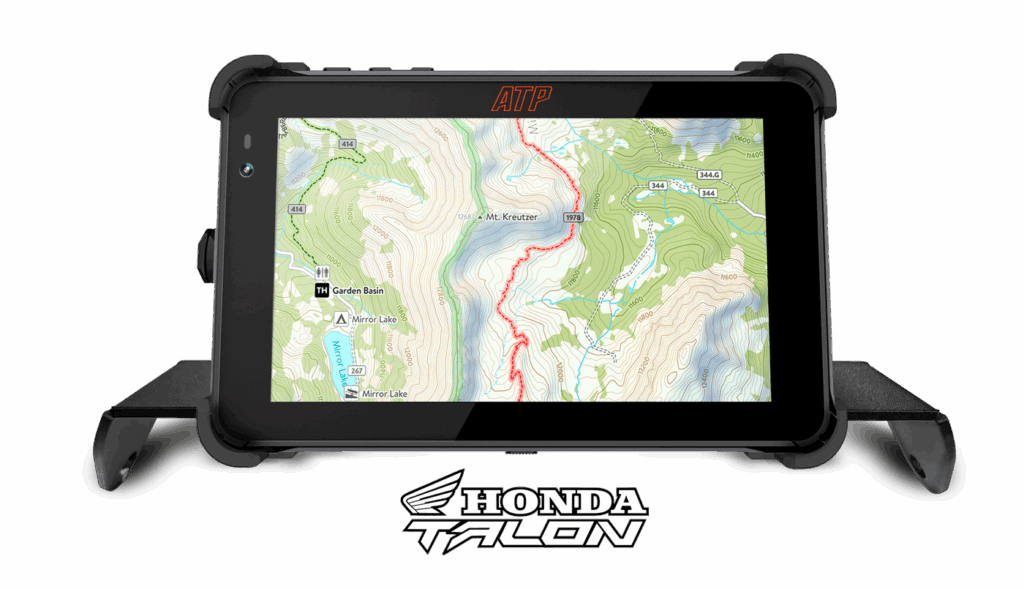
For multi-state trips or high-detail satellite imagery, budget 10+ GB for offline maps. The ATP Rugged tablet’s onboard storage handles this — confirm available space before large downloads and clear app cache if needed.
The practical recommendation: download more than you think you need. It’s easier to delete unused regions than to realize mid-ride that your boundary stopped two miles before your actual turnaround point.
Best Practices Before You Leave
Download on Wi-Fi. Cellular data is slow for multi-gigabyte downloads. Always download at home or at a location with reliable Wi-Fi.
Download the night before, not at the trailhead. Trailhead parking lots sometimes have marginal signal. Even if you can initiate a download there, it may not complete before you’re ready to ride.
Enable airplane mode to test. Before every trip, flip to airplane mode and open your navigation app. Confirm the downloaded area loads and GPS acquires a lock. Takes 60 seconds and eliminates field surprises.
Update offline maps before major trips. Trail data changes — new routes, closures, access updates. Most apps let you re-download a region to refresh the data. Do this before trips you’ve been planning all winter.
Keep a charged power bank as backup. Even with hardwired power on the trail, a charged power bank means your navigation device can run independent of the vehicle if something goes wrong with the power circuit.
Frequently Asked Questions
How do I download maps for offline use on an Android tablet?
Open your navigation app (onX Offroad, Gaia GPS, or Backcountry Navigator), go to the offline maps section, select your region, and initiate a download over Wi-Fi before your trip. Each app handles the flow slightly differently, but all three follow the same basic pattern — select area, choose detail level, download.
Does onX work without cell service?
Yes. onX Offroad supports offline map downloads that work completely without cell service. GPS position tracking uses the device’s satellite receiver, not the cell network. Download your riding region at home and the app functions fully offline on the trail.
How much storage do offline trail maps take up?
It varies by region size and detail level. A single riding area like Moab typically runs 200–500 MB. A full state download can run 2–6 GB depending on the app and detail settings. For multi-state trips with high-detail imagery, budget 10+ GB.
Can I use Gaia GPS offline on an ATP Rugged tablet?
Yes. Gaia GPS Premium supports offline map downloads on any Android device with sufficient storage. The ATP Rugged tablet runs Android with Google Play access — download Gaia, subscribe to Premium, and follow the download steps above.
What happens if I run out of storage for offline maps?
The download will fail or stop midway. Free up space by deleting unused offline regions, clearing app cache, or removing large files from device storage utilize ATP’s Tablet expandable storage SD card for additional device storage. Most navigation apps show you the storage footprint of each downloaded region so you can identify what to remove.
See the full nav app breakdown in Best Navigation Apps for Off-Road Riding (2026)